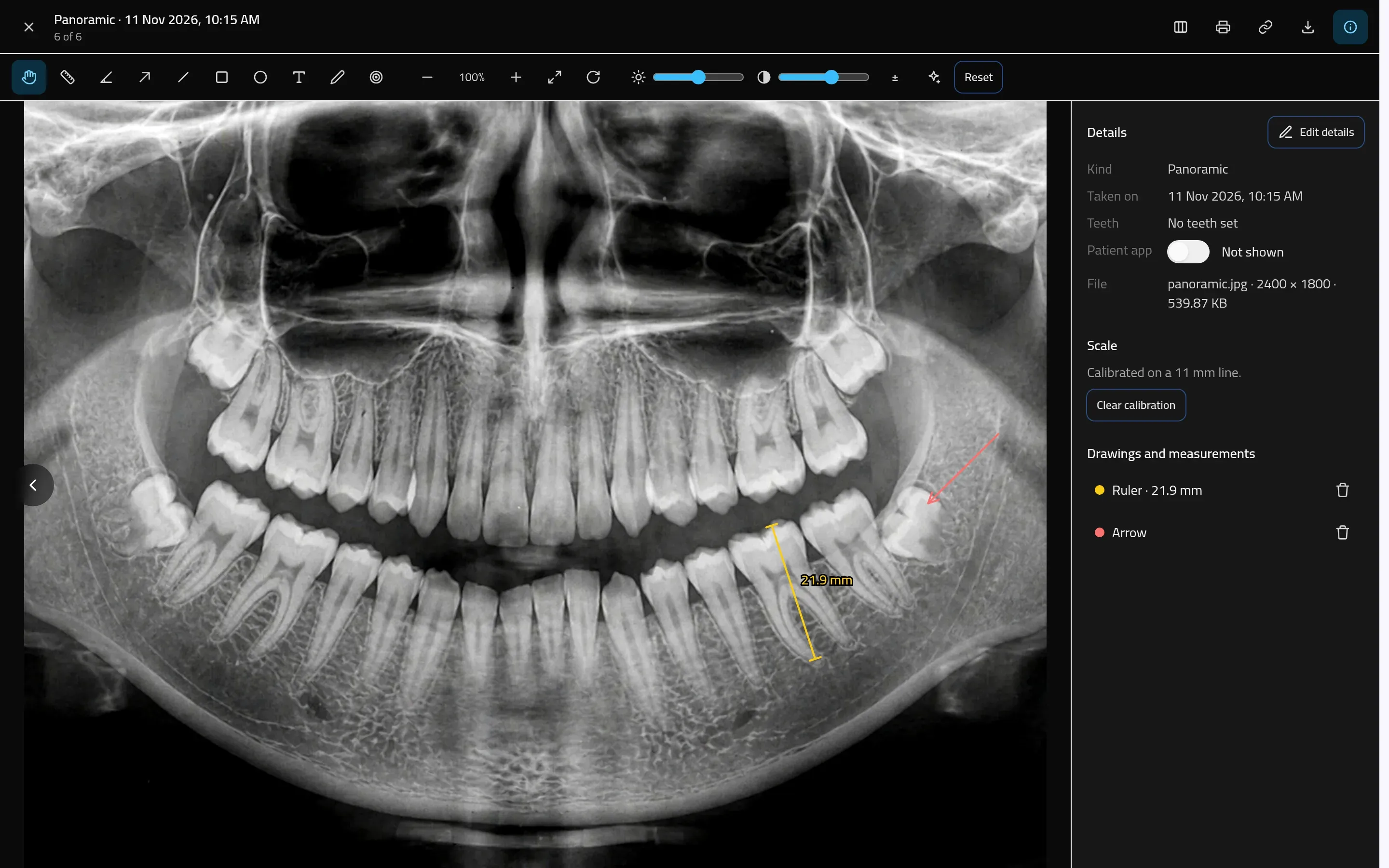
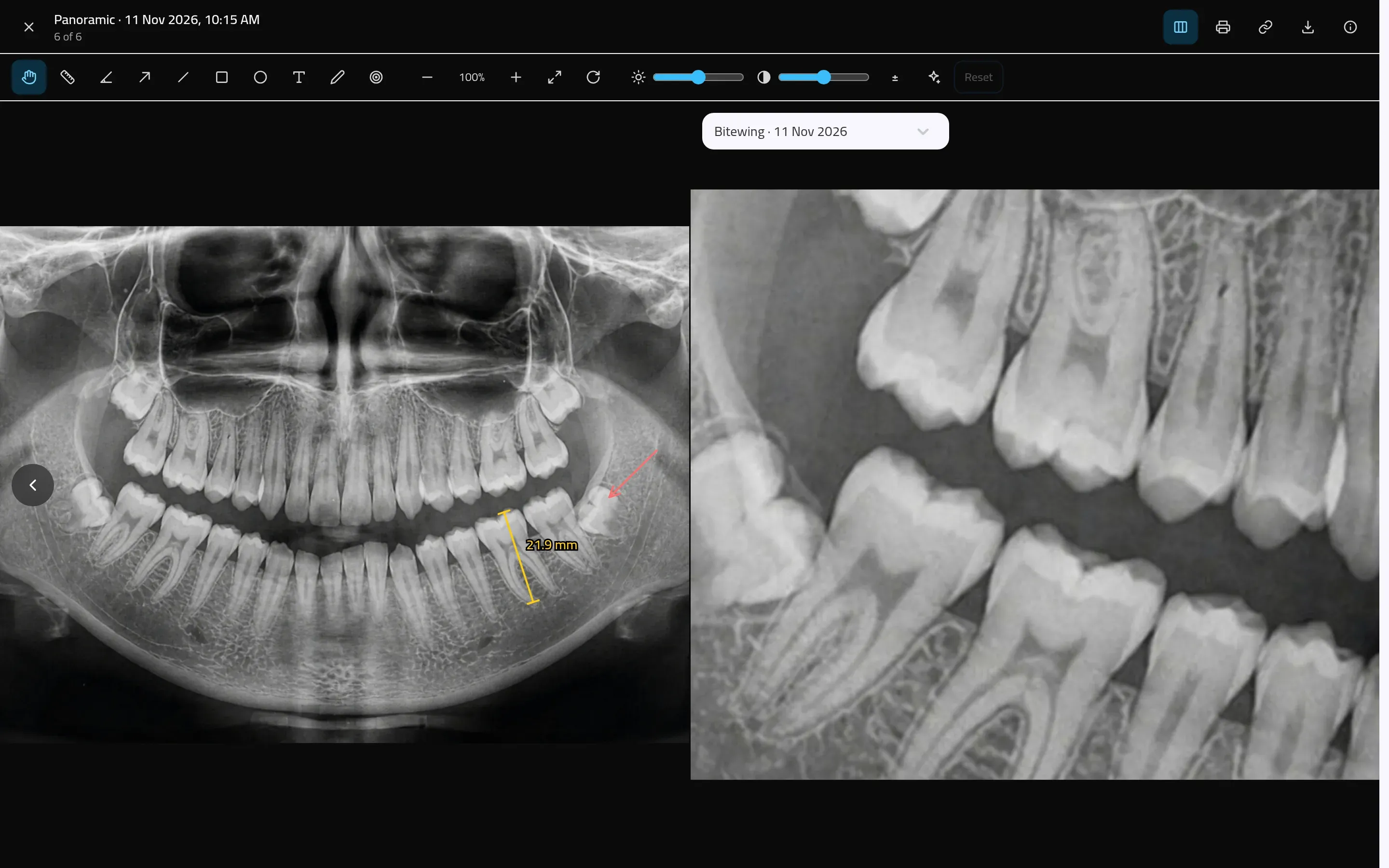
A viewer made for dentists
Zoom, brightness and contrast, invert and sharpen. Measure with a calibrated ruler, mark up an image and compare two side by side.
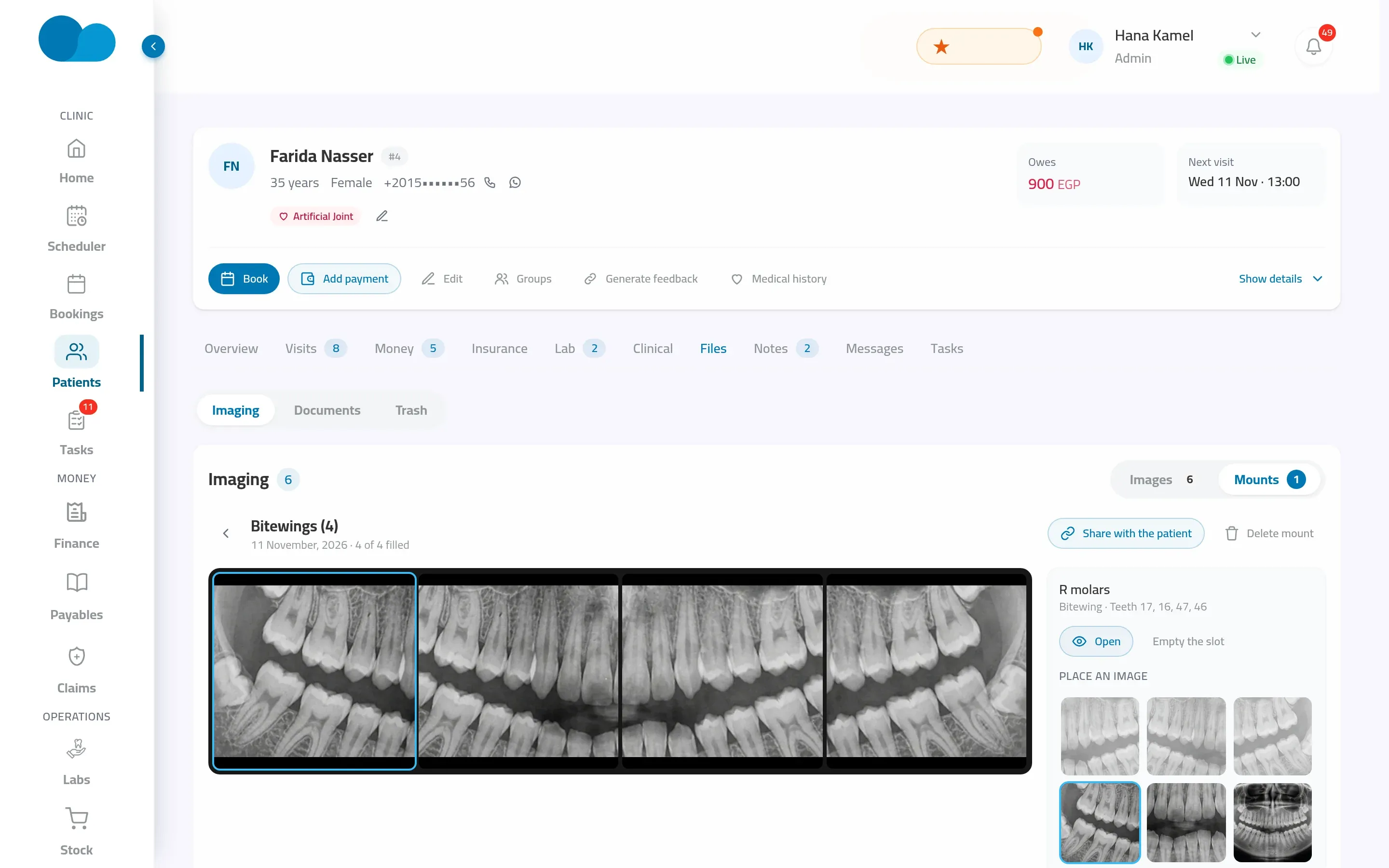
Mounts your way
Full mouth, bitewings and more — or draw your clinic's own layouts in Settings and drop an image in each slot.
Shared with the patient
Send images by link or QR code for 1, 7 or 30 days, or straight to the patient's app, where they can zoom and download them.
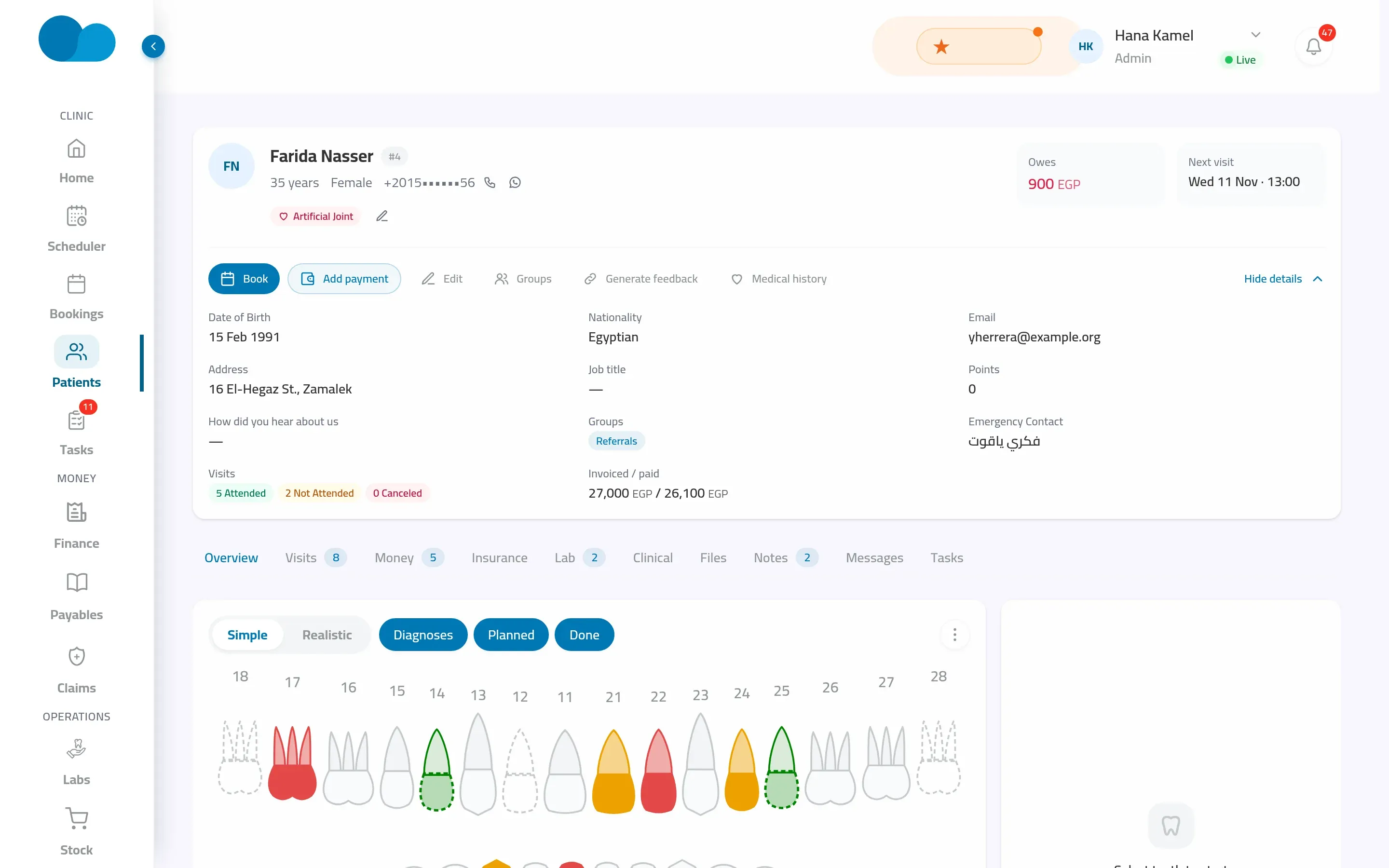
How it works in your clinic
- 01
Open the patient's Imaging tab
- 02
Drop in X-rays, photos or scans — or paste a screenshot
- 03
Tag the kind, date, teeth and visit
- 04
Open them in the viewer, mount them, or share them
Related features
Questions about imaging & x-rays
Which files can I add?
X-ray images, photos, DICOM files, CBCT series and 3D scans. Other documents stay under the patient's Files.
Can staff add images from a phone?
Yes. In the staff app, take a photo or pick some from the gallery, say what they are and which teeth, and they go to the patient's Imaging.
What happens to a deleted image?
It waits 30 days in the trash, so it can be brought back, before it is removed for good.